Contents
Test: XGIMI Elfin
Be careful when buying a projector! The market for cheap models that promise a few hundred euros exceptional image quality with brightness beyond the 5000 lumen mark is absolutely saturated. Disappointment comes as soon as you switch it on for the first time, because the picture is usually not as fantastic as promised.
By contrast, the home cinema projectors from the Chinese company XGIMI, which has existed since 2013 and has now also arrived in Europe, are enjoying particularly positive feedback. XGIMI became known primarily in the area of portable mini projectors, such as the recently released XGIMI Elfin (RRP 649 Euro).
Design, build quality, and included accessories
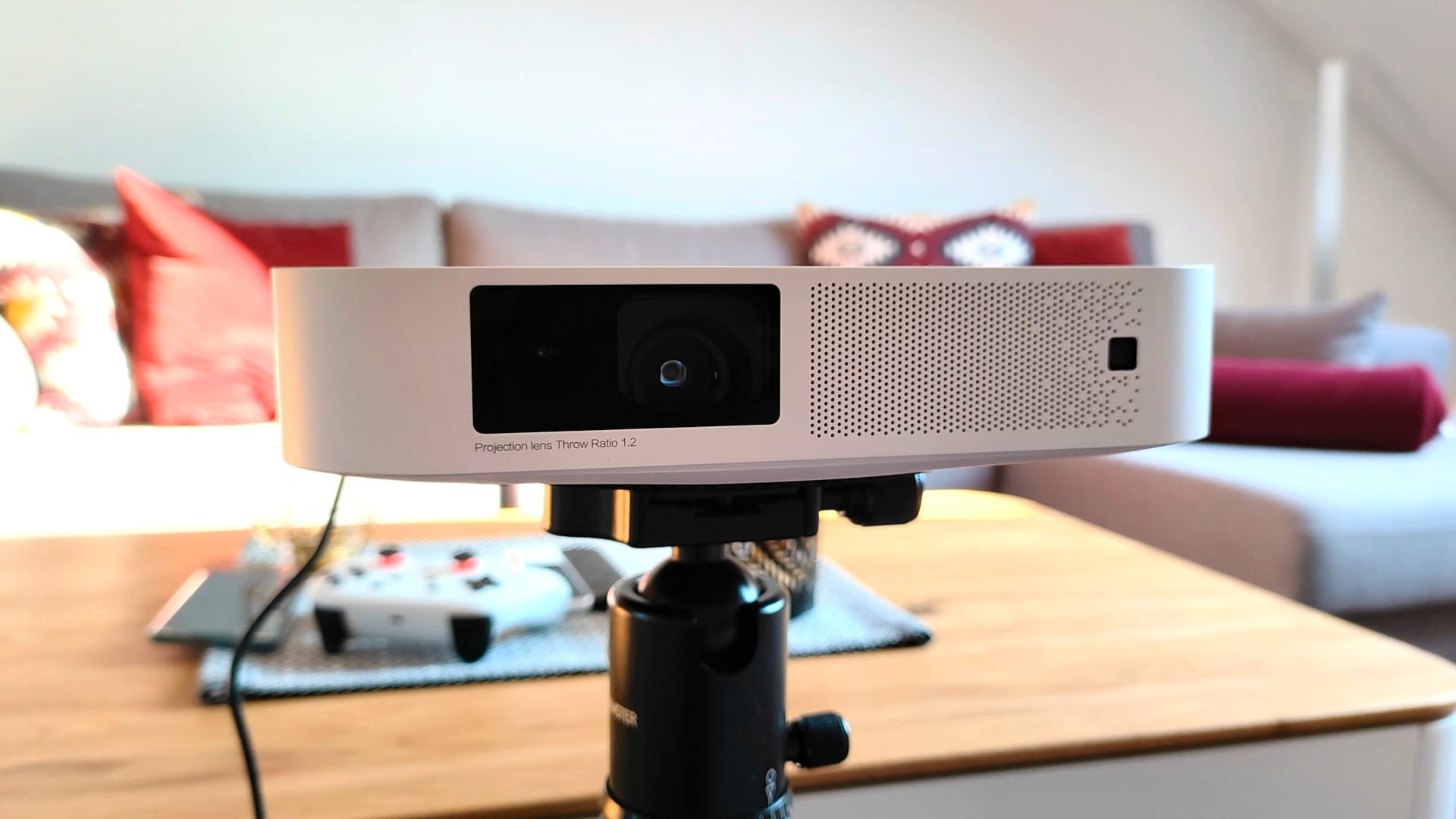
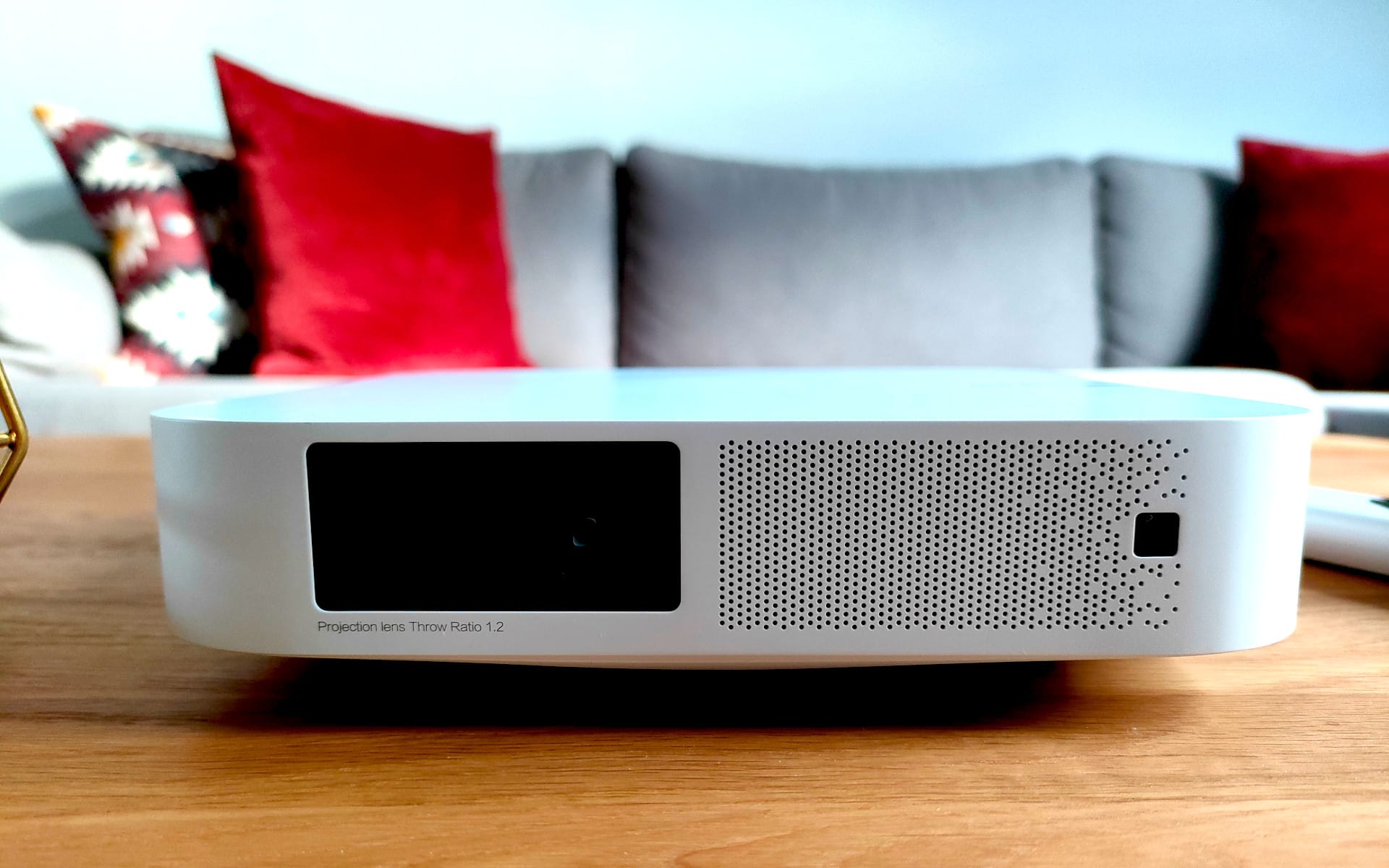
When I first saw the XGIMI Elfin, I was very impressed by its form factor. I had already tested several mini projectors, but the Elfin was in a league of its own.
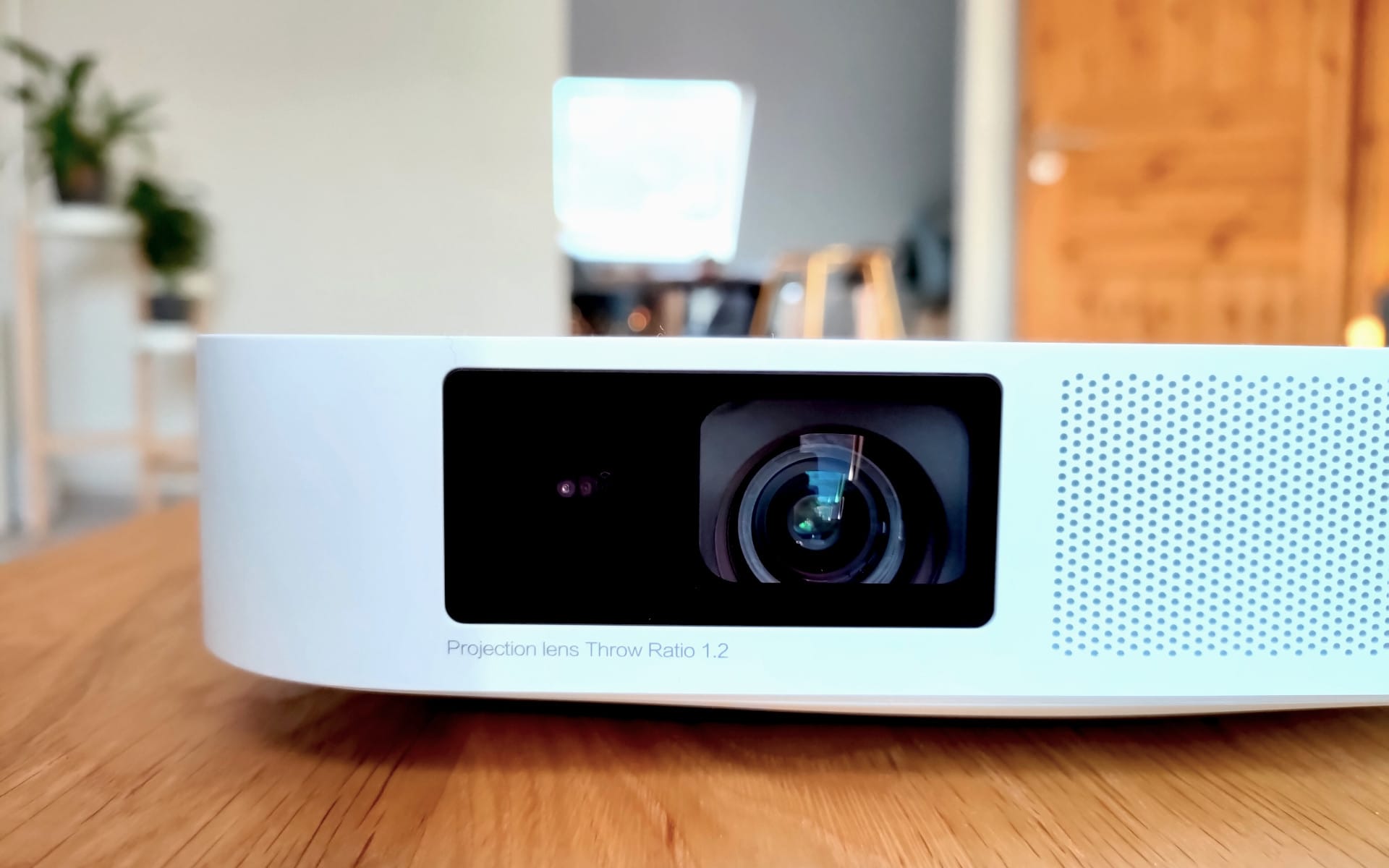
XGIMI has packed all the hardware into a 192.1 x 194.19 x 48.31 mm plastic housing. Due to the matte white colour, the rounded housing corners and the lens hidden at the edge, the Elfin looks more like a stylish streaming box than a projector.

Compared directly with a DIN A4 sheet, the projector fits in without problems. The height of less than 5 cm is also impressive, as many compact projectors are usually designed to be taller to accommodate the speakers and projection hardware including cooling. Thanks to the flat form factor and the lightweight 900g, the projector can be easily stowed in bags and backpacks.
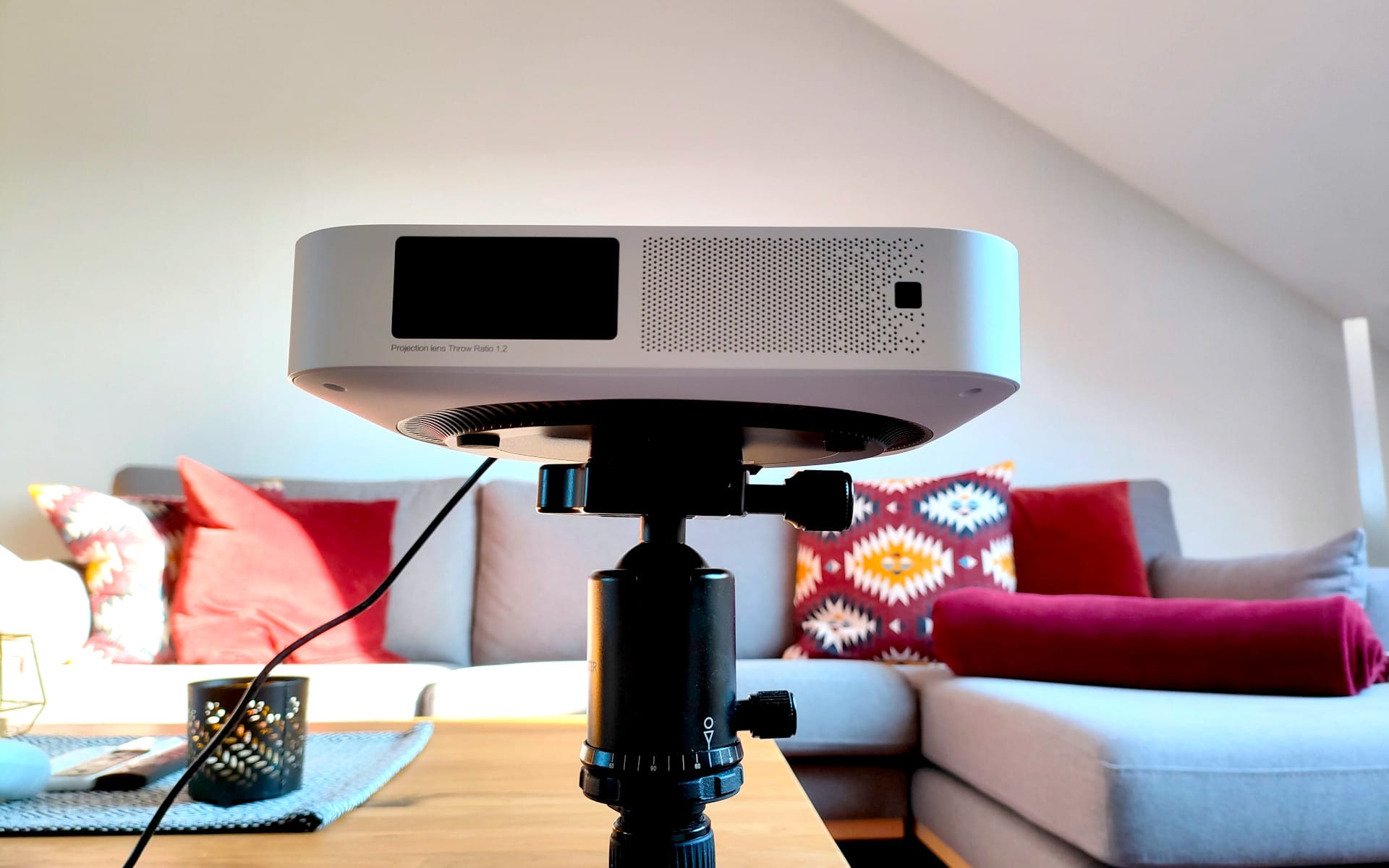
The portable aspect also plays a decisive role for the XGIMI Elfin, enabling versatile usage possibilities in addition to stationary home cinema projection. Showing holiday photos to grandparents, taking the projector to play games or watch films with friends, giving presentations at university, school or work, or having a garden cinema on a cosy summer evening are just some of the possibilities realised by the compact form factor.

The connection options are limited but sufficient for a portable mini projector. There is an HDMI 2.0 input, a USB-A port for USB input devices or storage media, a 3.5 mm headphone output and a DC input for the power supply.
The underside of the XGIMI Elfin is equipped with a tripod screw. This is highly practical, as it allows the projector to be ideally aligned and balanced using a tripod, or mounted upside down on a suitable bracket. However, a tripod or bracket is not essential. The Elfin can simply be placed on a flat surface. Rubber feet ensure a secure stand. The Elfin handles focus and keystone correction fully automatically without user intervention. More on that later.

There is nothing to criticise about the build quality. Despite the extensive use of plastic, it is top-notch! Along with the beamer, the supplies include the matching power adapter (19V 3.42A) with IEC power cord, the remote control and the user manual. The two AAA batteries required for the remote control are missing. A suitable carrying case would have been a desirable addition (considering the price).

Hardware
It continues to be interesting with the internals of the XGIMI Elfin. The projection technology is DLP with a 0.33" DMD chip from Texas Instruments. The native resolution is 1080p, but upscaling allows for up to 4K. The small Elfin also supports displaying 3D and HDR10 content.
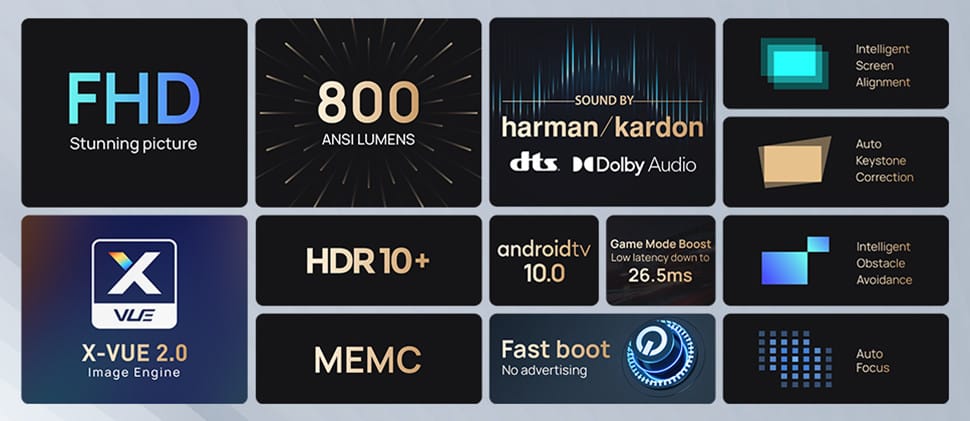
The LED light source delivers up to 800 ANSI lumens of brightness to the screen. A special blue light filter reduces the strain from blue light, which has been proven to damage the eyes. XGIMI states the lifespan of the LED is up to 30,000 hours. If the projector were used for 8 hours every day, this would equate to more than 10 years of operation.
The projector already has a "Smart TV" built in. Here, XGIMI relies on an Android TV 10 user interface with integrated Chromecast technology. XGIMI makes no details about the processor. Only RAM and data storage are known, at 2GB and 16GB. More on how smoothly the system runs can be found below.
In addition to wired connection options, wireless connections can be established via dual-band WiFi (AC) and Bluetooth 5.0 (BLE).
Setup and operation
Setup
There is not much to say about the 'Set-up' section, as the XGIMI Elfin is one of the most beginner-friendly devices I have ever encountered. Place the projector, connect the power supply and turn it on. The Elfin handles the rest by itself.
After each power-on, the focus is automatically adjusted on the projection surface using a depth sensor. This can be a screen or a conventional wall. The same applies to keystone correction (horizontal and vertical), which automatically compensates for image distortion.
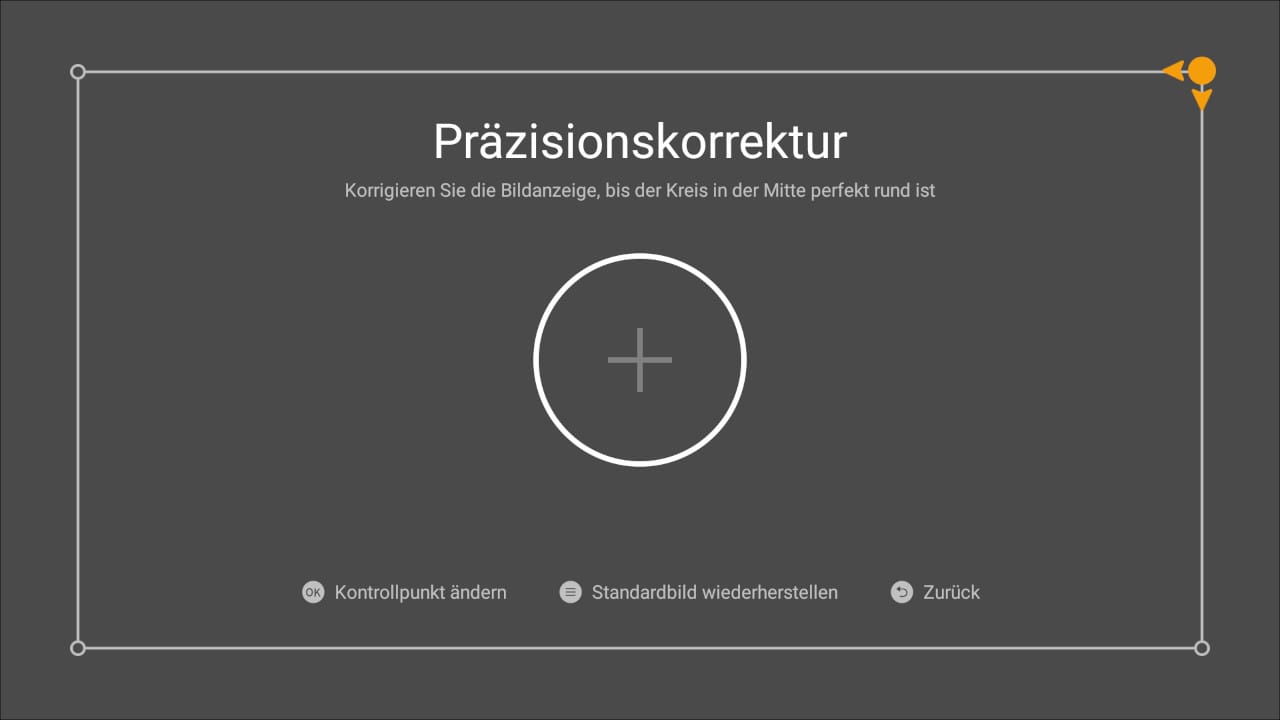
In our test, both functions worked reliably for the most part. The image was always sharp, and I only had to manually adjust the trapezoidal correction occasionally, even though the projector was set up with a slight tilt. You should ensure that the Elfin is positioned as straight as possible when placing it. If an object is in the image, such as a light switch or a plant, the XGIMI Elfin is even smart enough to avoid the object by adjusting the image size.
Worth mentioning is the tiny switch on the remote control, which allows you to switch the volume buttons to manual focus buttons. At a projection ratio of 1.2:1, the following image sizes are possible depending on distance:
| Distance (metres) | Projection size (inches) |
| 1,87 m | 70" |
| 2,10 m | 80" |
| 2,40 m | 90" |
| 2,67 m | 100" |
| 3,20 m | 120" |
According to XGIMI, the maximum image size is 200". However, not much brightness remains on the screen then, which is why I recommend a maximum projection size of 120". Approximately 90" are ideal.
Operation
The projector itself has no control panel. All settings and corrections you want to make are done via the Bluetooth remote control. The OSD (On-Screen Display) appears somewhat convoluted in places. For example, within the Android TV settings there is an item called “Projection settings”, which includes options for brightness, keystone correction, image sharpness, projector placement and connections.
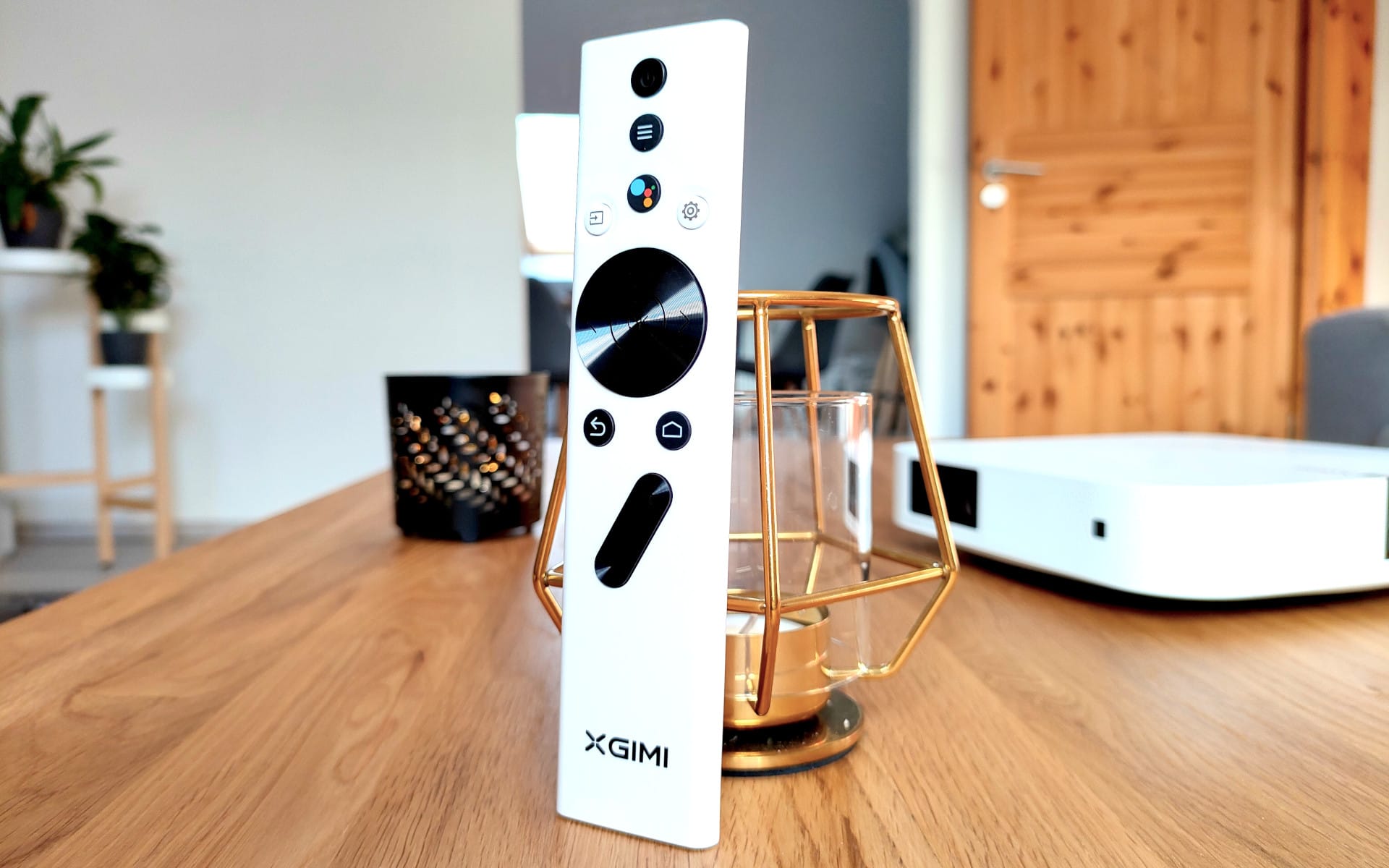
The so-called "Shortcut settings" can only be accessed via the settings button on the remote control. These also list the trapezoidal correction settings. However, there are also adjustment options for picture mode, sound and 3D video settings.
The picture mode includes the preset profiles "Film", "Football", "Office" and "Game". Under "User", you can make your own picture settings. Brightness, contrast, saturation, sharpness, noise reduction, and colour temperature can be adjusted. The colour temperature also has a user mode where red, green, and blue values can be set individually. Additionally, there are advanced settings for local contrast, HDR, and motion compensation.
Practical test: home cinema suitability
Image quality
Image quality is one of the most important aspects, and here the XGIMI Elfin performs really well. In testing, I projected the Elfin onto a low-gain screen and a white wall.

On the low-gain screen, the picture impresses with rich colours and high contrast. The picture mode "Film" is, as the name suggests, ideal for watching films. Colours appear natural and warm. Local contrast (Off, Low, Medium or High), HDR (Off or Auto) and motion compensation (Off, Low, Medium or High) are adjustable for fine-tuning in this mode.

The brightness of the XGIMI Elfin is sufficient to project a still-viewable 90" image even in daylight. The different brightness modes affect both brightness and colour. The "Performance" mode is the brightest mode, with a measured 700 ANSI lumens reaching the screen. However, this mode also has a strong green tint. The "Eye Protection" mode is the weakest mode with 300 ANSI lumens brightness. Here, the image is particularly warm and characterised by a visibly increased red component. The "Bright" mode renders the image rather bluish, and "Standard" is the most natural mode. There is no ECO mode.

The sharpness is evenly distributed across the entire image and does not visibly drop off towards the edges. Small fonts are legible. A pixel grid is not visible at normal viewing distance. No irregularities in brightness distribution were noticed either.

The MEMC (motion compensation) also performs well. Depending on the scene, artefacts and loss of detail may occur, but they are not severe. The Elfin handles HDR10+ content well. Our test playback of HDR content shows clearly crisper colours with better depth perception and visibly more brightness nuances.
Audio
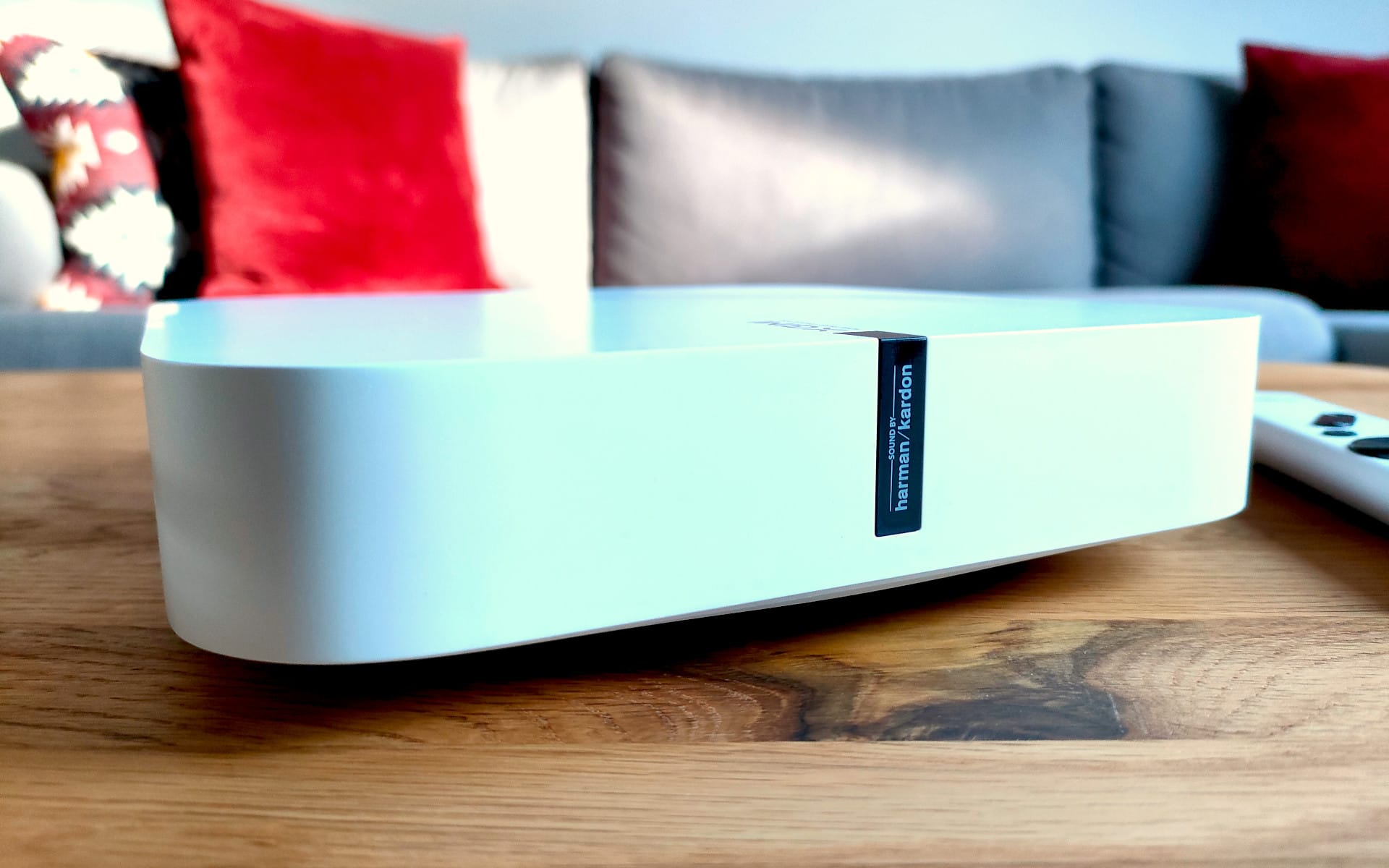
The "Sound by Harman Kardon" speaker system with two 3-watt speakers delivers sound comparable to a small Bluetooth speaker. The sound is clear and the volume is sufficiently loud without distortion or becoming shrill. For watching a film, the sound quality is completely adequate.
What is somewhat lacking in the sound image are the bass frequencies. You should not expect rich bass here. External speakers or soundbars can be connected via 3.5 mm jack or HDMI ARC.

Sound setting options are available. You can choose from the sound profiles “Film”, “Music” and “Sport”, select DTS Studio Sound and enable volume levelling. Incidentally, the XGIMI Elfin is compatible with DTS and Dolby Audio!
Operating noise
Operating noise varies depending on the operating mode. In “Film” mode and under “Standard” brightness, the noise level measured from 2 metres is just under 30 dB. A slight fan hum can be heard, though it does not distract while watching films and fades into the background quickly. On the highest brightness level, the fan becomes slightly louder. Here the Elfin reaches approximately 37 dB, which I also did not find particularly disturbing.
Android TV 10
With Android TV 10, the XGIMI Elfin actually offers one of the best smart TV interfaces on the market. The emphasis, however, lies on the word “actually”, because there is a problem.
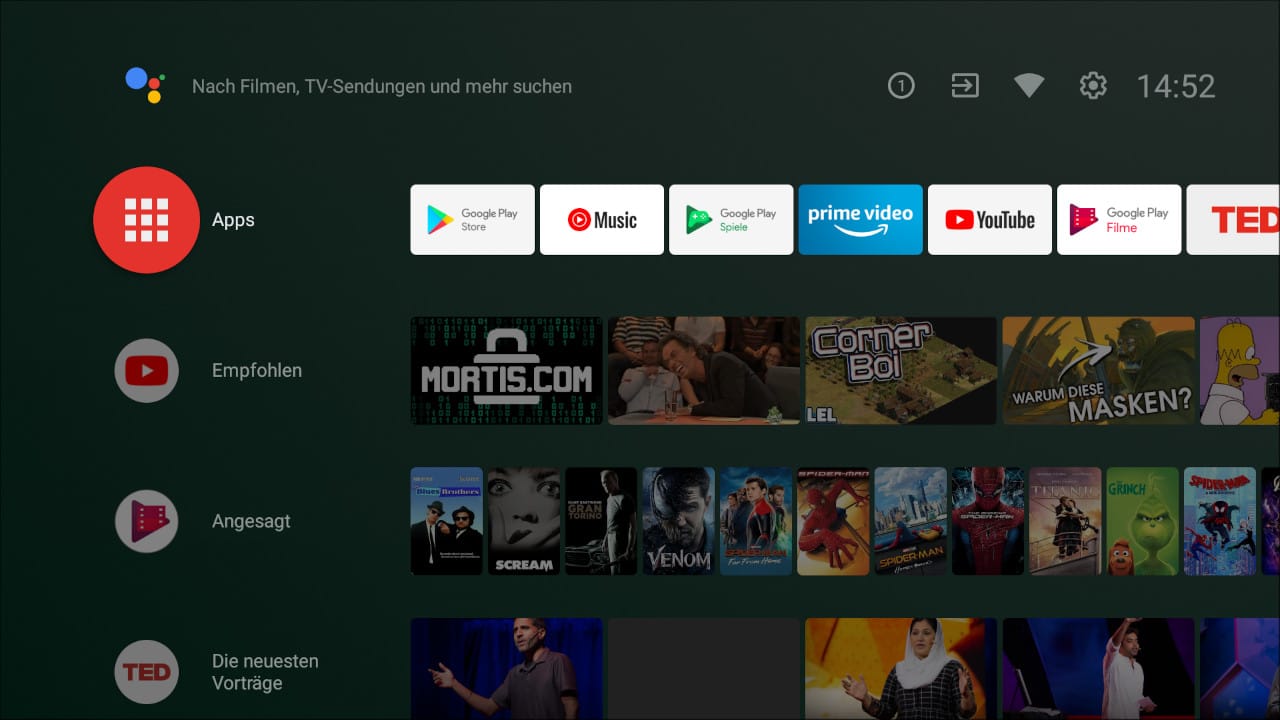
YouTube with 4K and HDR, Amazon Prime Video and many other streaming apps run without problems on the Elfin's Android TV. The Chromecast integration also works well, enabling streaming from desktop and mobile devices directly to the Elfin.
However, what didn't work in the test was Netflix. When launching the app, a warning appears: “This device is not optimized for Netflix (-14)”. After confirming with “OK”, Netflix starts and you can log in to your account without any issues. The previews load, but if you want to start a film or a series, you get the error “Your account cannot be used on this device.” Running Netflix via Chromecast integration also fails.
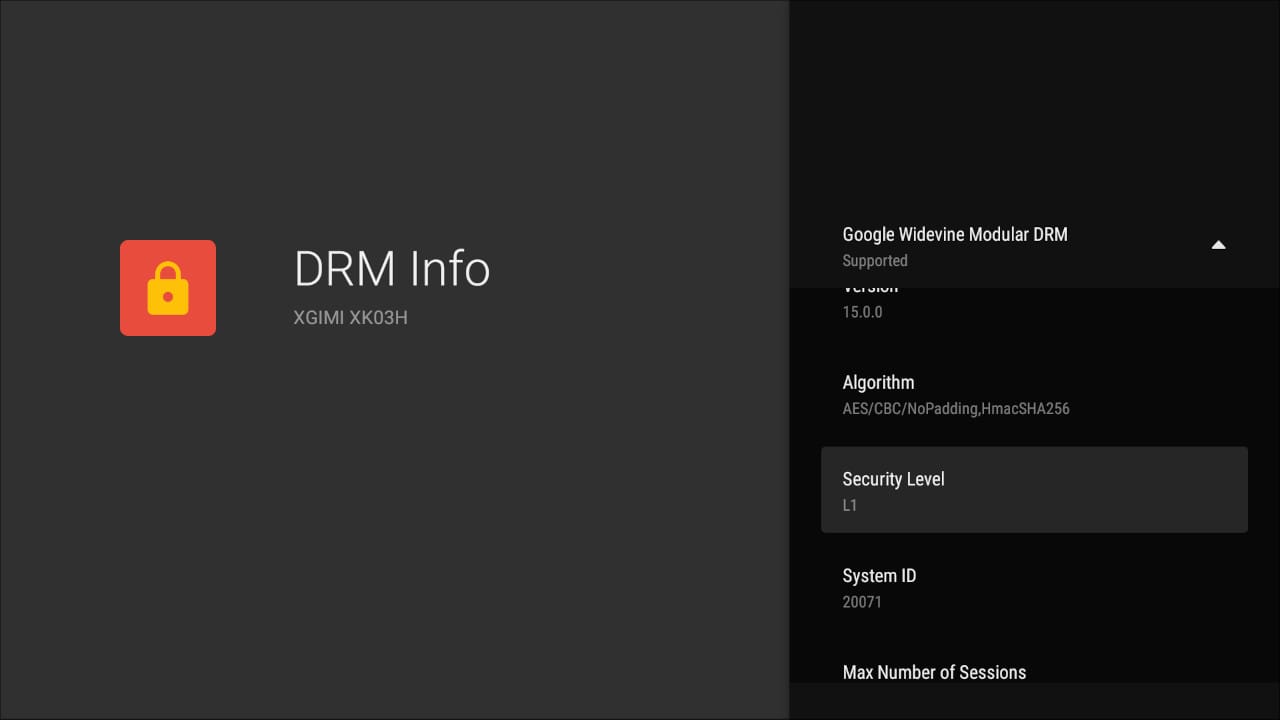
Workarounds to install Netflix so it remains functional can be found online. Alternatively, you can connect a Netflix-compatible streaming stick. However, it would be better if XGIMI resolved the Netflix issue. After all, the projector already has a reasonably smooth-running Android TV installed. A look at the DRM compatibility also reveals that the Elfin supports the Widevine-DRM even in L1 (FHD, 4K) required by Netflix without any issues.
Gaming and 3D
The XGIMI Elfin has its own gaming mode, which can only be activated with a connected source. Users can choose between “Standard” and “Enhanced”. The latter is intended to significantly reduce input lag in games, but also disables functions such as automatic keystone correction.
For the gaming test, friends and I grabbed a PS5 and played a round of Fifa in 4K60 via the projector. No one noticed a significant input lag that would make it impossible to use the Elfin for gaming. As a compact gaming projector for on the go, it is definitely recommended!
The XGIMI Elfin also supports the playback of 3D content. A compatible active shutter glasses are available in the XGIMI shop for just under €30 (Link).
Our verdict
If you are looking for a compact projector to quickly show holiday photos to your grandparents on a large screen or to watch football with friends in the garden on a warm summer evening, the XGIMI Elfin is a good choice.
The projector is certainly not a bargain price-wise, but it offers very simple operation thanks to automatic focus and automatic keystone correction, a really very good image quality with native 1080p resolution, high brightness and HDR, as well as an integrated Android TV streaming box with Chromecast function, although there is one point of criticism here.
Unfortunately, Netflix is not supported by default on the Elfin. Other streaming apps, however, work without issues. If you still want to run Netflix via the projector's Android TV, you must try one of the workarounds found online. Alternatively, a separate streaming source can be connected via HDMI. However, there is only a single HDMI input!
Specifications
General
- Type
- DLP
- Chip
- 0.33" DMD 1080p
- Light source technology
- LED
- Brightness
- 600 - 800 ANSI lumens
- MEMC
- Yes
- Keystone correction
- Auto, Vertical and Horizontal
- Focus
- Autofocus
- 3D support
- Yes
- HDR
- HDR10
- Resolution
- 1920 x 1080 pixels
- Aspect ratio
- 16:9 (4:3)
- Projection size
- up to 200"
- Throw ratio
- 1.2:1
- Contrast ratio
- 1000 : 1
Ports
- 1x HDMI 2.0
- 1x USB 2.0
- 1x 3.5 mm audio
- 1x DC
Other
- Speakers
- 2x 3W Harman Kardon
- Audio
- DOLBY, DTS
- Smart TV
- Android TV with Chromecast
- Wi-Fi
- Yes (2.4/5GHz)
- Bluetooth
- Yes, (5.0)
- Lamp life
- >30,000 hours
- Power consumption
- 65W
- Size
- 192.1 x 194.19 x 48.31 mm
- Weight
- 0.9 kg
What’s included
1x XGIMI Elfin 1x power supply (19V 3.42A) 1x power cord 1x remote control 1x user manual
Price comparison
| Store | Price | Link |
|---|---|---|
| XGIMI | 359,00 € | Go to store |
| MediaMarkt | 569,99 € | Go to store |
Comments (1)
Great info