Contents
First look - Xiaomi Mi WiFi Router 3G
What’s included
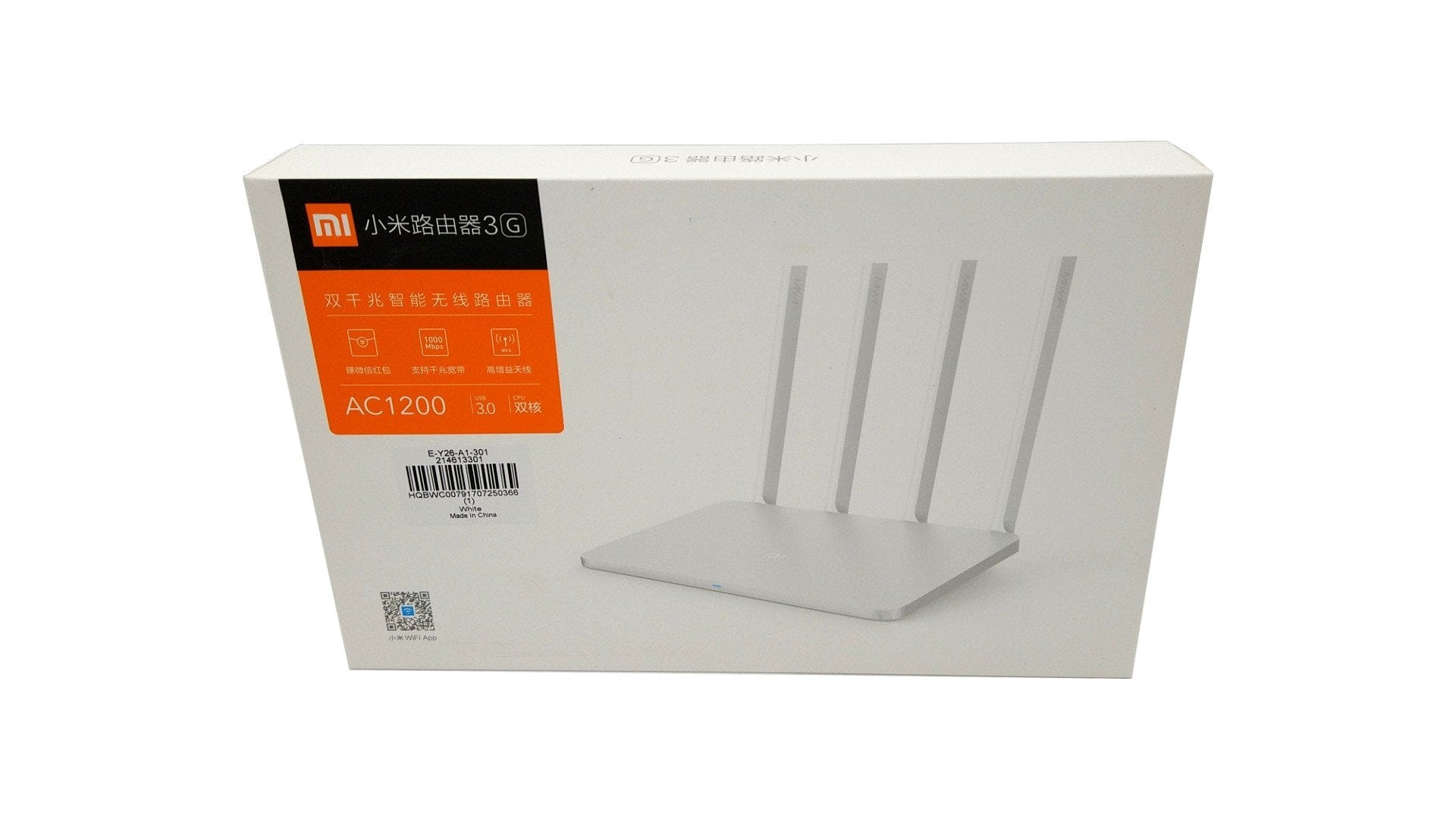
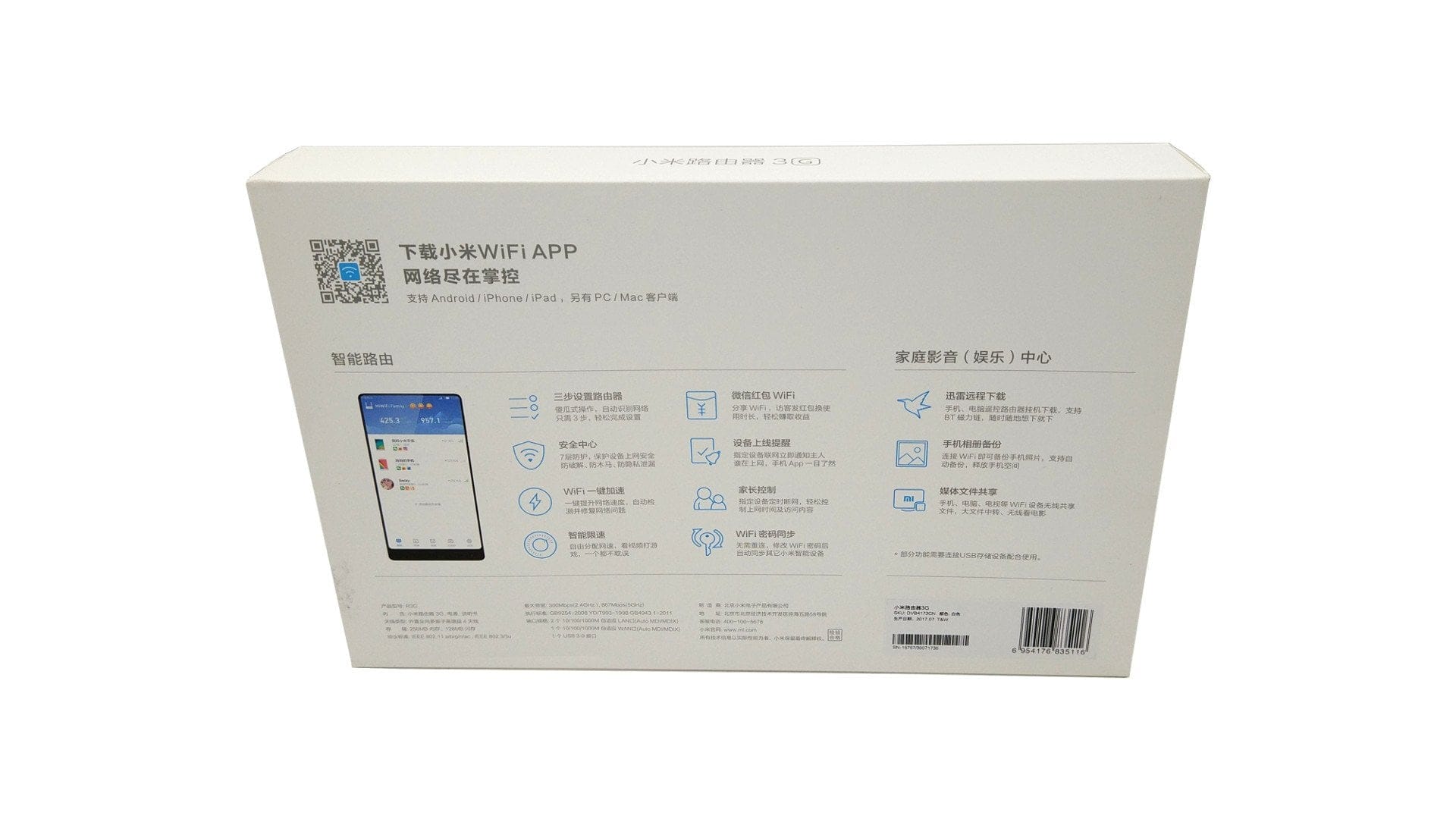
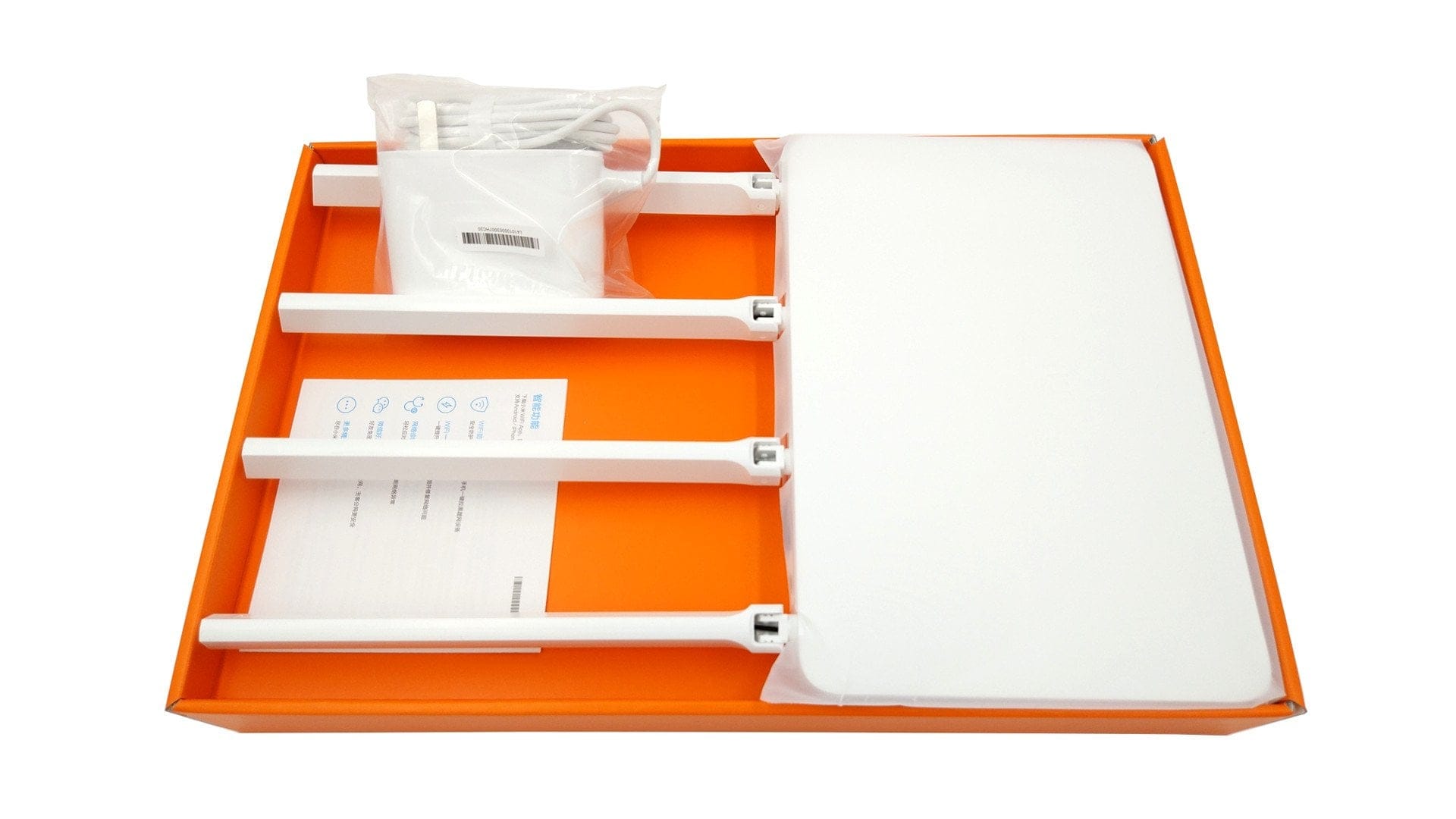
As with the predecessor, the scope of delivery includes only the router, a power supply with NEMA-1 plug (12 V - 1.5 A) and a Chinese user manual. If you want to use the supplied power supply here in Europe, you will additionally need an EU adapter.
Design and build quality
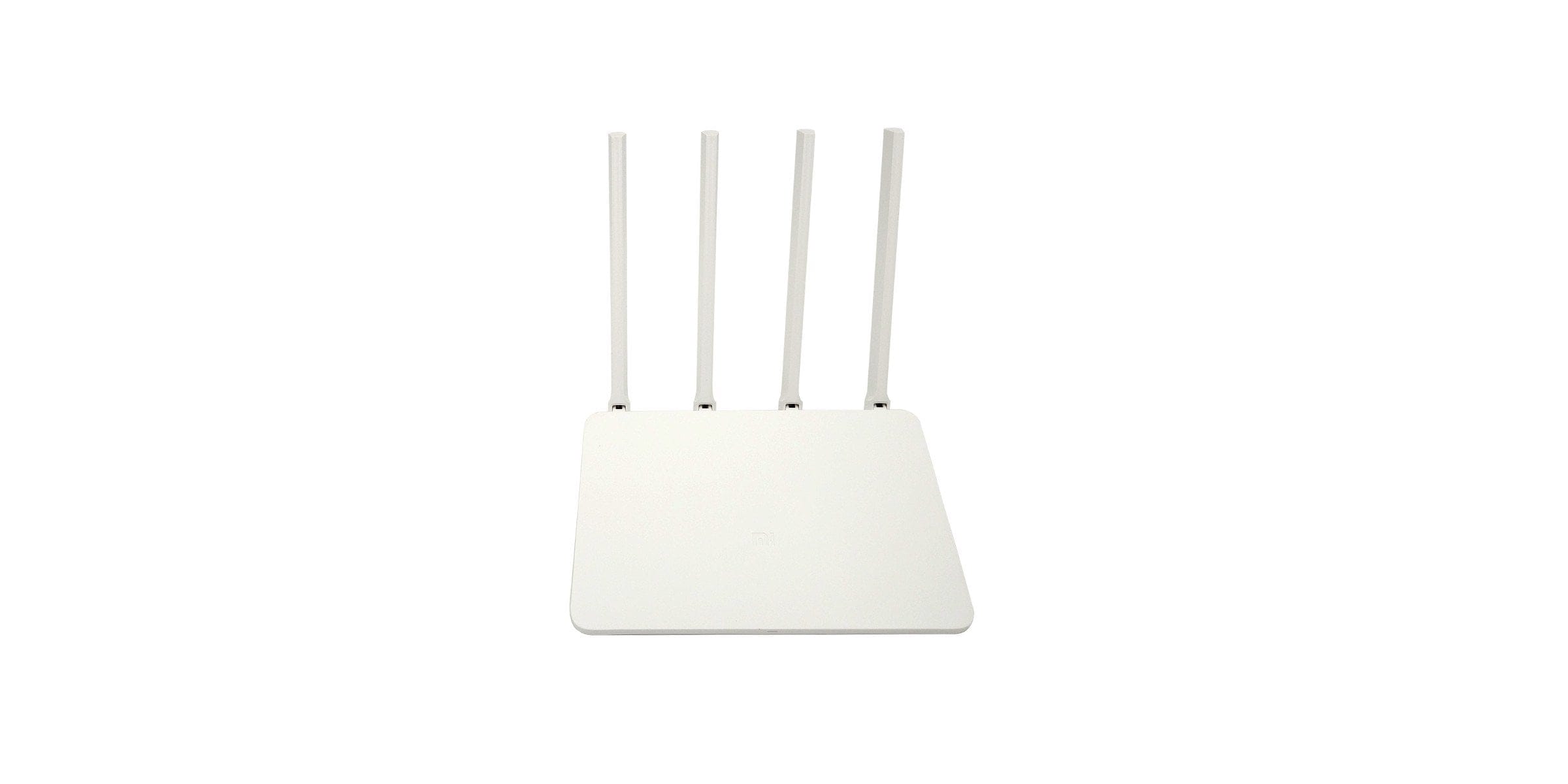
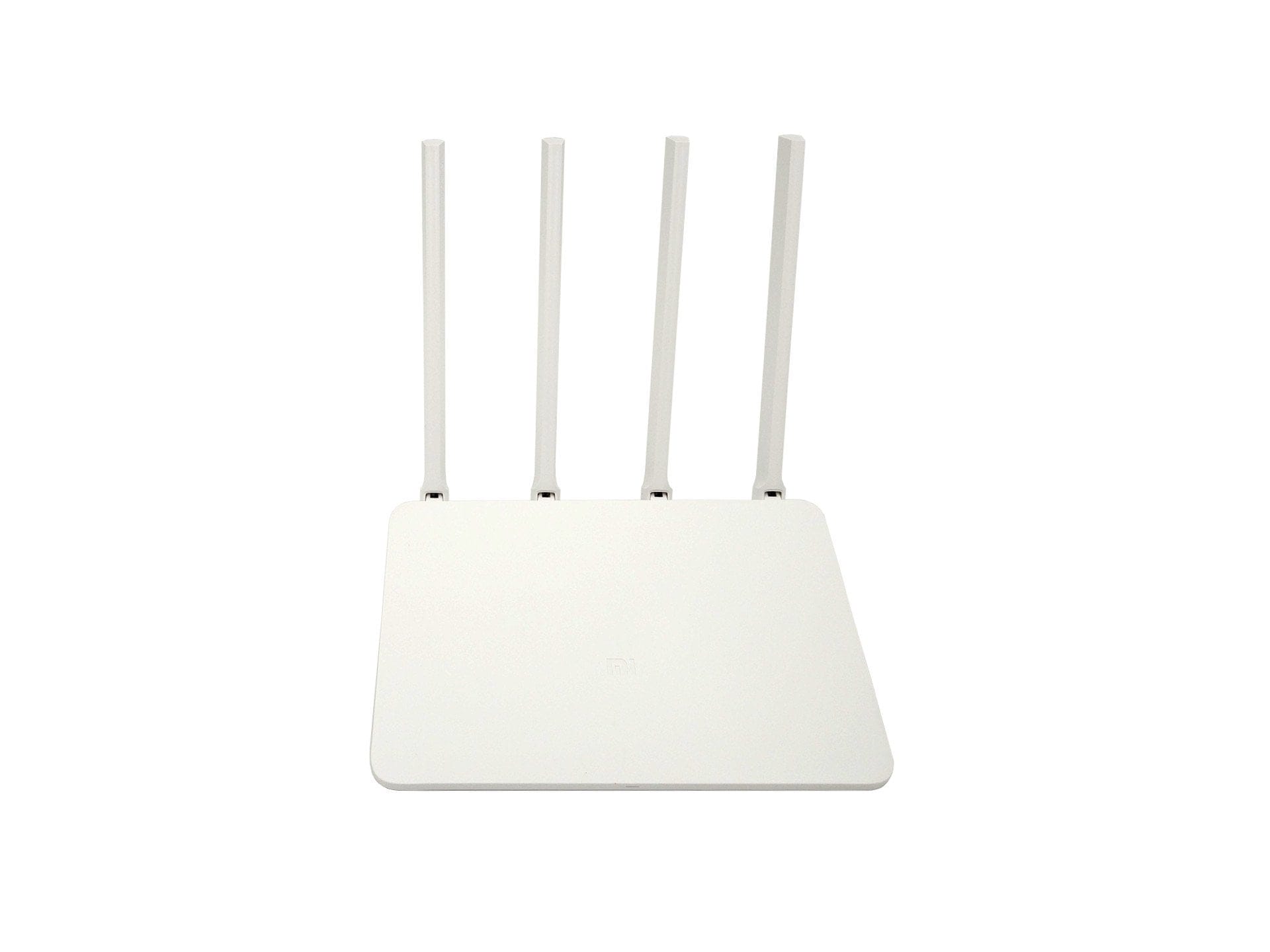
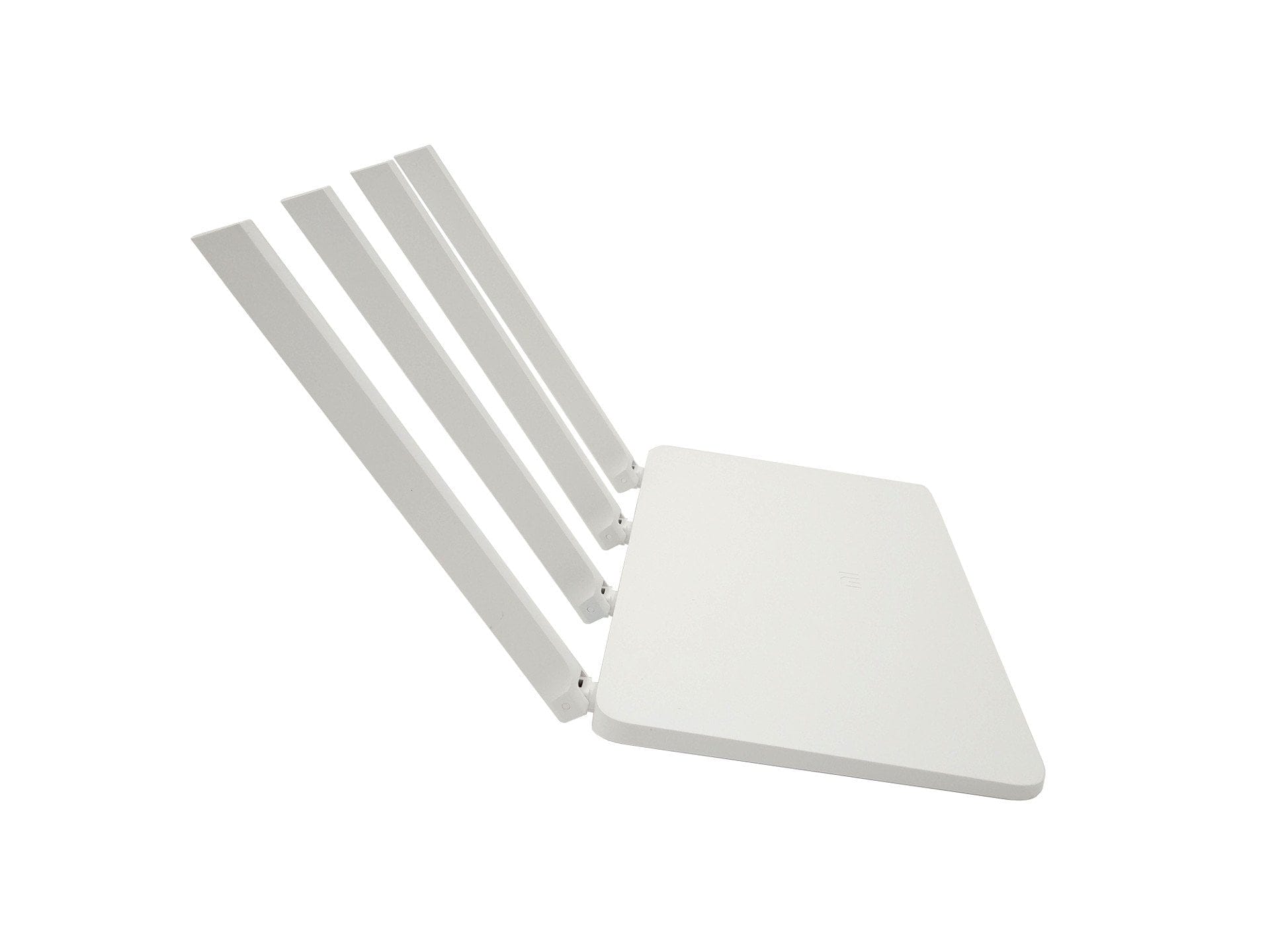
Xiaomi has reused the housing of the 3. Xiaomi Router, which is why the Xiaomi Router 3G is not a bit different from the previous model in terms of appearance. The plain white housing measures 19.5 cm in length, 13.10 cm in width and 2.40 cm in height. The total weight of the router is 261g. Wall mounting is not provided for. Rather, the router is intended to be placed on a surface, which is why it is equipped with four tiltable, omnidirectional antennas. All connections are located on the rear. The reset button and power connection are also located there. On the front is a multi-coloured status LED. The build quality is beyond reproach.
Hardware
The Xiaomi Router 3G has not received a visual update, but significant changes have been made on the hardware side. Xiaomi uses a MediaTek MT7621A system-on-chip, whose dual-core MIPS1004Kc CPU runs at up to 880 MHz. As a result, compared to the predecessor, which still relied on the MT7620N system-on-chip, the number of cores has increased, the processor runs faster, allows for faster memory access, is USB 3.0 compatible and can support up to five Gigabit Ethernet ports.
Consequently, the Xiaomi Mi WiFi Router 3G also makes a good impression in terms of its memory equipment. The router offers 128MB SLC Nand Flash and 256MB DDR3-1200 working memory (Model 3 only with 128MB DDR2). The connection options consist of one WAN and two LAN ports with fast Gigabit connectivity, as well as one USB 3.0 port. The 4 omnidirectional antennas are used by both 2.4G and 5G WiFi. The supported WiFi protocols are IEEE 802.11a / b / g / n / ac, IEEE 802.3 / 3u / 3ab. Xiaomi specifies the maximum data transmission rate of the Xiaomi Mi WiFi Router 3G at 300 Mbps on 2.4G WiFi and 867 Mbps on 5G WiFi. Multi-User MIMO (MU-MIMO) is not supported.
Setup
The user interface of the router is based on OpenWRT and is only available in Chinese by default. This initially makes setup appear complicated, but the configuration is generally straightforward and can be carried out without issues using Google Translator. Once the router is set up, you can conveniently translate the user interface via the browser. Alternatively, it is also possible to flash the firmware designed for Hong Kong and Taiwan, which is also available in English.
Those familiar with the process of flashing firmware and who have no problem with alternative software can even flash the LEDE firmware, Prometheus or PandoraBox. These are open-source projects that are also based on OpenWRT and offer significantly more scope in terms of functions and possibilities. Instructions for the individual projects can be found online. For the test report, the original firmware was left on the router.

Web interface and features
As already mentioned, Xiaomi uses a modified version of OpenWRT. There are hardly any differences between the individual Xiaomi router models. All Xiaomi routers receive different firmware updates, but the web interface is usually identical in terms of appearance and functionality.
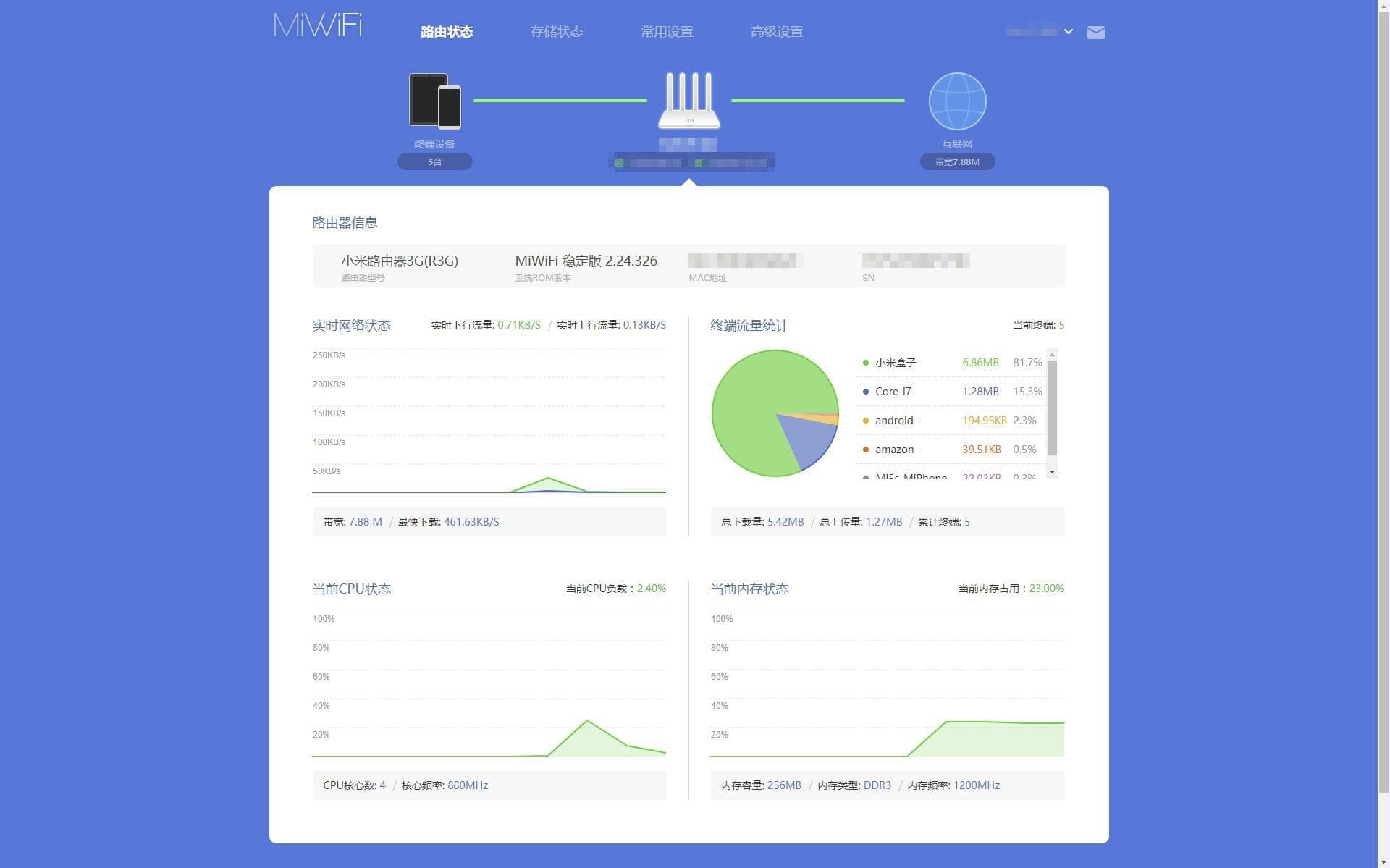
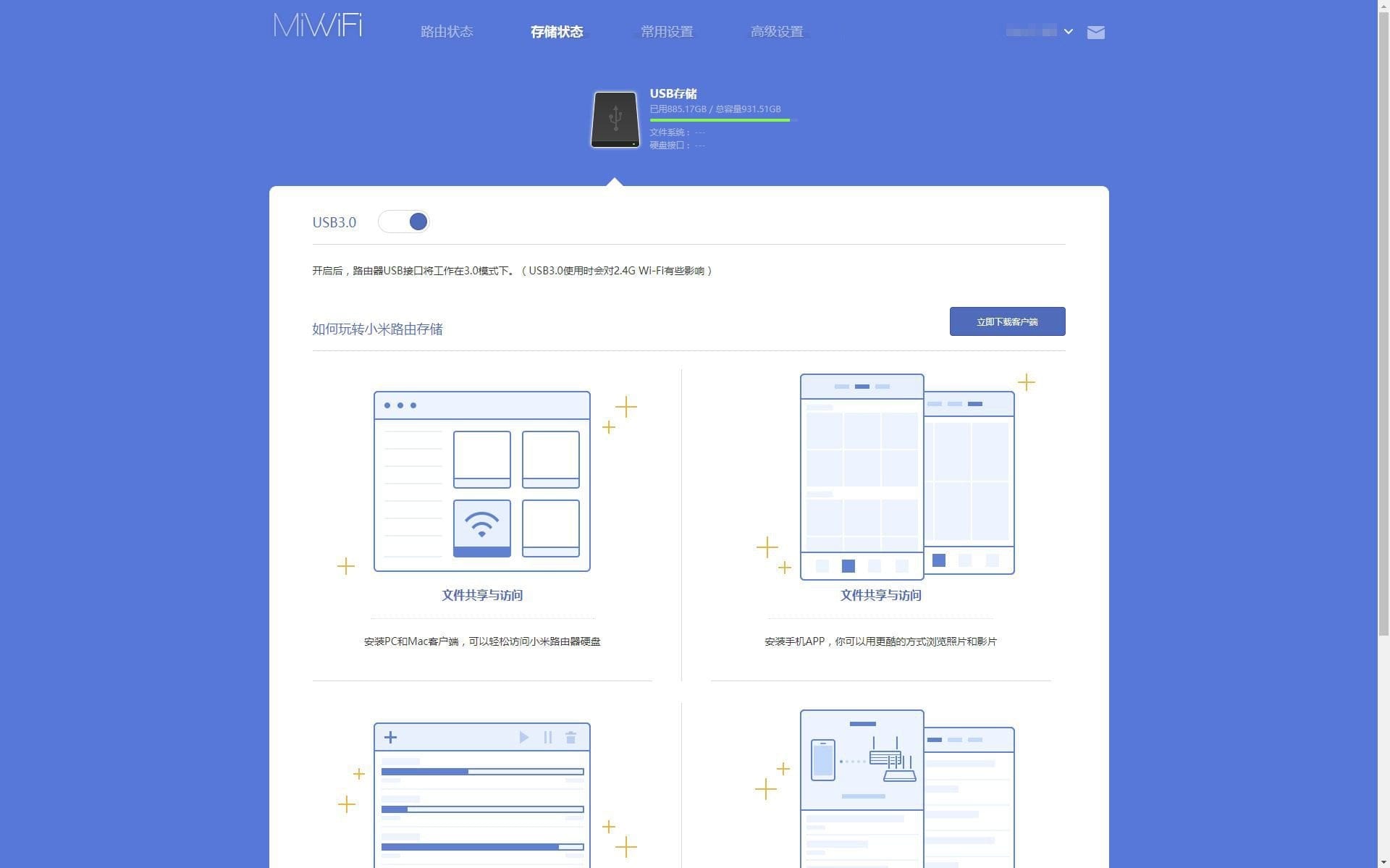
If you surf to the web interface of the Xiaomi WiFi Router 3G, you are greeted by a detailed overview that, in addition to general information on the router status, also provides information on connected devices, data throughput and system load. The menu item for storage management explains how to connect an external medium to the router. Access from a computer is possible via the Mi WiFi Client, for example, which is available for both Windows and OSX. For mobile devices, there is the so-called Mi WiFi app (Android and iOS), which also allows you to set up a Samba server.
Within the general router settings, you can manage the WLANs. In addition to the typical configuration of the SSID, password, and encryption, it is also possible to adjust the transmission power, and the WiFi channel can be freely selected. The 2.4G and 5G networks are configured separately. Interesting is the possibility of creating a completely independent guest WLAN that operates separately from the “main WLAN”. Further configuration options exist for DHCP, DNS, and the white or blacklists.
In the advanced settings sub-item, QoS can be configured, DDNS can be added, port forwarding rules can be created, a PPTP or L2TP VPN can be preset, and there are settings for UPnP.
Xiaomi Mi WiFi App
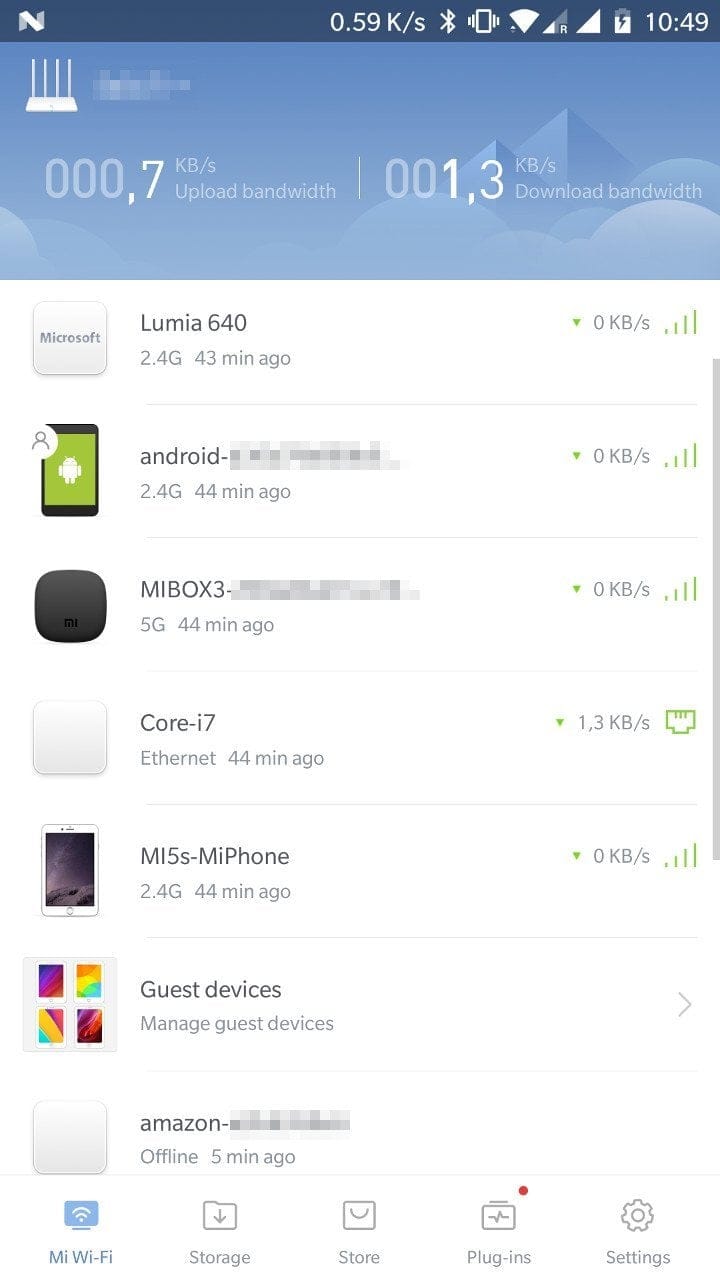
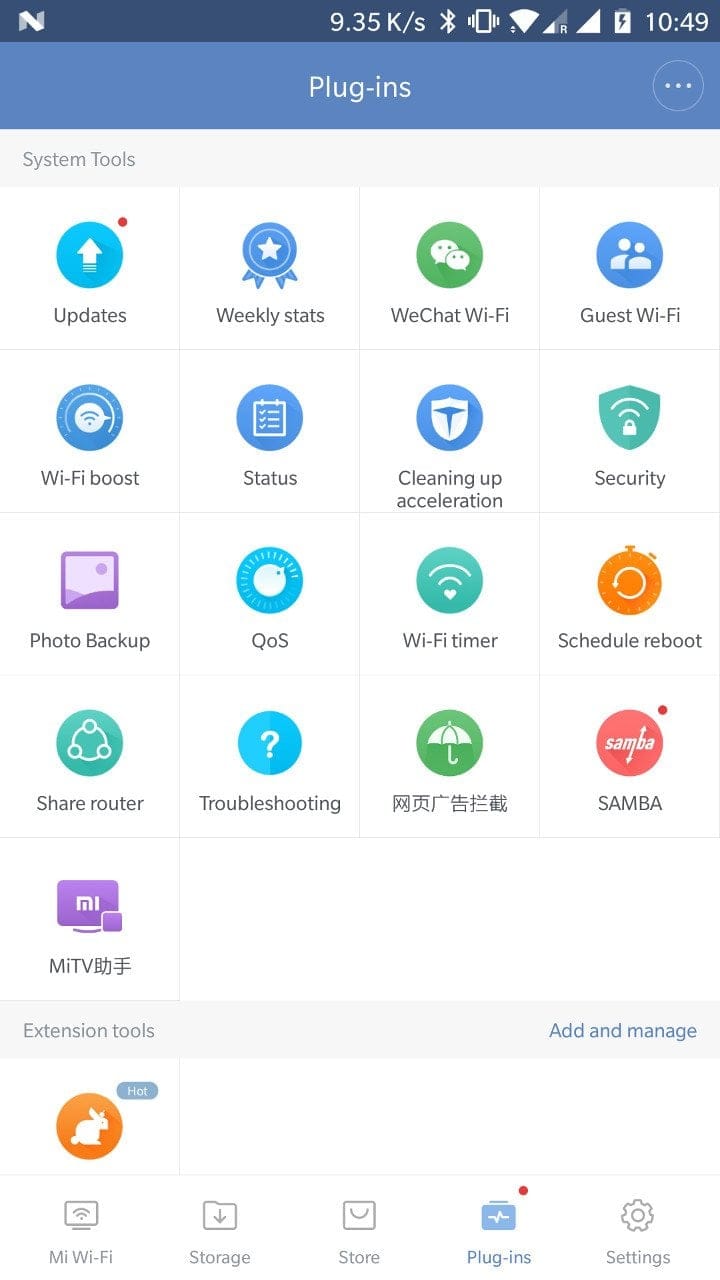
The Xiaomi Mi WiFi app is available for Android and iOS mobile devices. Unlike the router's default Chinese web interface, the app is also available in English. Functionally, the app offers the same features that can be selected via the web interface. Additionally, it is possible to install various plugins via the app, such as an ad blocker, a firewall, or a Samba server. However, many plugins are mainly intended for the Chinese market.
Xiaomi Mi WiFi PC Client
The PC client is officially only available in Chinese. Unlike the app and the web interface, the PC client primarily serves to simplify data transfer. For example, downloads can be started directly via the router and saved to the connected medium. As an alternative to HTTP or FTP download, it is also possible to use the Mi WiFi Client for downloading torrents.
Practical test of the Xiaomi WiFi Router 3G
The Xiaomi Router 3G was tested via LAN with a Realtek 8111D network card and via Wi-Fi with an Intel Wireless-AC 8260 chip module. A Toshiba STOR.E Basics USB 3.0 hard drive was used as the connected storage medium.
Wi-Fi signal strength
The WLAN set up by the router impresses on both the 2.4 GHz and 5 GHz networks with a constant signal at high range. While the router cannot quite match the significantly more expensive Xiaomi R3P in terms of data throughput, considering the price, the Xiaomi Router 3G delivers above-average performance. Switching between 2.4 GHz and 5 GHz is seamless.
NAS function and data throughput
Unlike its predecessor, the Xiaomi Router 3G features USB 3.0 instead of USB 2.0. Management of the connected storage medium is handled via the Mi WiFi app. The file management via the app is clear and uploading and downloading work flawlessly. If you enable the Samba Server Plugin via the app, you can also conveniently create a network drive from your PC and access the storage medium.
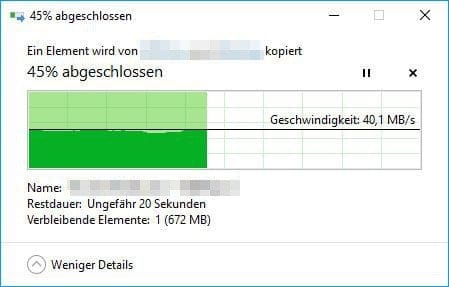
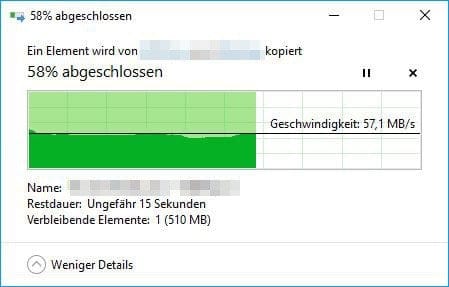
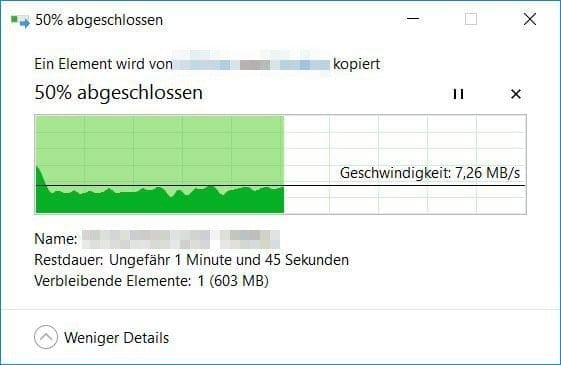
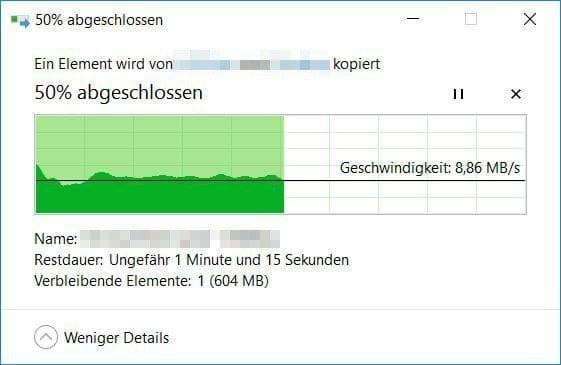
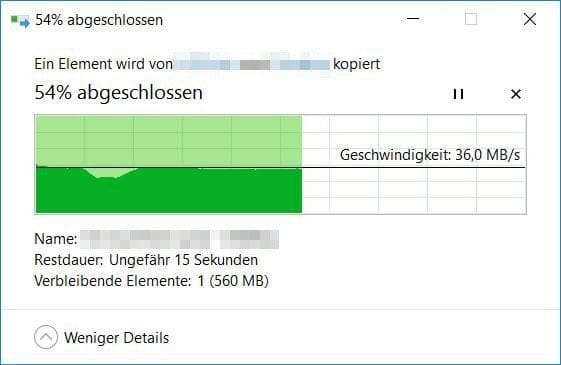
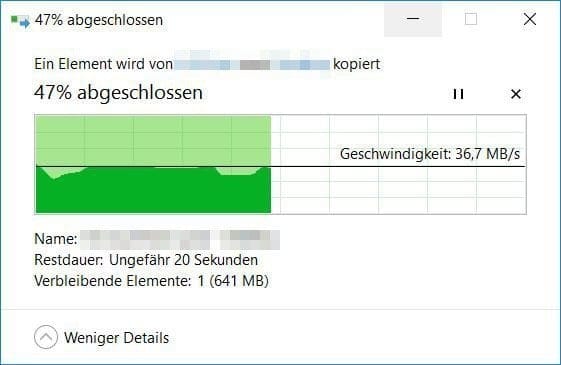
To use the USB 3.0 function, it must be activated separately via the web interface or the app. At the same time, users are warned that USB 3.0 data transfers can interfere with 2.4 GHz WiFi. In our tests, however, no differences or impairments were noticeable. In fact, data throughput was almost identical in WLAN whether the USB 3.0 function was active or disabled. Only in the LAN was there a noticeable difference in data transfer speed.
LAN transmission
Transfer via Wi-Fi
Power consumption
The power consumption of the Xiaomi WiFi Router 3G is 8.2 watts at idle. During normal usage, values of 10.8 watts are reached. If a hard drive is additionally connected and accessed, consumption rises to 13 watts. It makes no difference whether the USB 3.0 function is activated or deactivated.
Our verdict
Although the Xiaomi Router 3G does not differ externally from the previous year's model, it offers significantly more powerful hardware. In testing, the router convinced mainly through a comparatively good data throughput, as well as a strong Wi-Fi signal. Xiaomi has replaced the 100 Mbit connection criticised in the previous model with three Gigabit WAN and LAN ports. At the same time, the only connection for storage media has been upgraded to USB 3.0, which at least positively affects transmission speed regarding the NAS function in the LAN. The only criticism remains the Chinese user interface, which can only be changed via firmware updates or modifications.
Specifications
Hardware
- CPU
- MediaTek MT7621A MIPS
- RAM
- 256MB DDR3
- NAND
- 128MB Flash
Ports
- 1x Gigabit WAN
- 2x Gigabit LAN
- 1x USB 3.0
- 1x Power
Network
- Protocols
- IEEE 802.11a/b/g/n/ac, IEEE 802.3/3u/3ab
- 2.4G channels
- 1, 2, 3, 4, 5, 6, 7, 8, 9, 10, 11, 12, 13
- 5G channels
- 36, 40, 44, 48, 52, 56, 60, 64, 149, 153, 157, 161, 165
- 2.4 GHz WiFi
- Up to 300Mbps
- 5G WiFi
- up to 867 Mbps
Other
- NAS
- External USB media
- OS
- Mod. OpenWRT
- Size
- 19.50 x 13.10 x 2.40 cm
- Weight
- 261g

Comments (37)
Can the router be configured as a repeater?
Hi Raul, yes, there is a repeater mode.
Hello Timo,
I recently started using the Xiaomi G3 as a “wired repeater” and am fairly happy with it.
I bought it because of the USB 3.0 port, which I want to use to connect a hard drive for backups.
From everything I’d found out so far, it should be easy to set up this drive as a network drive in Windows 10. That’s what your review says, too.
Here’s what I did: After right-clicking “Network” in Explorer, I click “Map network drive.” In the window that opens, I enter the address assigned by my Fritzbox, followed by “\XiaoMi-usb0”. The entry then looks like this: “\\192.168.178.XX\XiaoMi-usb0”. When I click “Browse,” a folder named “XiaoMi-usb0” appears alongside the “Chinese folders.” But when I try to select it, a window always opens asking me to enter “network credentials.” And that’s where I’m stuck!
Whatever I try entering there as the username and password, I always get the message “Access denied.
I should perhaps also mention that I enabled “Samba” in the Mi WiFi app. The app also correctly lists all the hard drives and USB sticks I’ve tried.
But I am sure that I managed to access a USB drive via Windows Explorer shortly after unpacking it and during the first test run. But now I never get further than the mentioned point.
I hope I have managed to formulate my problem half-way understandably, unfortunately, I am not an experienced forum user. Should I have forgotten important information, I will gladly provide it!
Hoping for a functional solution proposal, I remain
with kind regards
Choker
Hi Choker, in the app you need to select the relevant connected device that should be able to access the network drive. Then select “Samba read.” After that, you should be able to read and write to the network drive from that device.
Hello Timo,
Thanks so much for the super-fast reply!
What you say makes sense, but I can’t find the options you mentioned.
When you say “app,” I assume you mean the smartphone app (Android, in my case). The hard drive is listed under “Storage,” but I can’t select it separately, let alone enable “Samba read” anywhere. In my app, I can only find Samba as a plugin, and tapping it opens a window with an on/off switch, which is blue—in other words, enabled—in my case.
In general, I have the problem that everyone on the web seems to have a different web interface. When I log in to the router using its IP address, I only see two options at the top, unlike all the screenshots I’ve seen online so far: “Relay Status” and “Relay Settings.” Others have an option called “Storage,” among other things (according to Google’s translation!).
I have a similar issue with the Android app – in some screenshots I have seen that the Samba plugin icon is marked with a small red dot. This is missing on mine.
But I also don't want to overtax your helpfulness and patience…
Don’t worry, that’s what the comments section is for :). I posted two screenshots of the “Mi WiFi” app at the top of the review. The first screenshot shows the device overview. It lists all the devices (smartphones, PCs, tablets…) connected to the router. In this device overview, select the PC you want to use to access the network drive (just click it). Another overview will then open, specifically for that network device. There, you can control the device’s network traffic and also select the “Samba read” option.
WOW!!!
I’d call that great support!
I wouldn’t have figured that out in 3 years!
Many thanks! It actually worked this way!
Dear Timo, thank you very much! 🙂
Best regards, and enjoy your evening! 😉
Choker
Hello Timo,
After you helped me so brilliantly three weeks ago, I have to turn to you for help again:
In the last step, I had installed the 3G router as a “wired repeater” so I could store backups on the USB hard drive connected to it. Thanks to your help, that worked. But that was only the first step toward getting what I hoped to do up and running. Three weeks later, I’ve now received a second Xiaomi router. I wanted to use it to access the backup USB hard drive wirelessly from a neighboring building (after Amazon discontinued its unlimited cloud storage after a year, I started looking for a “home solution” that would also protect against data loss caused by, for example, a fire—which is why I’m using the neighboring building).
The setup I had in mind: Keep the first (original) Xiaomi router connected to the Fritzbox as a “wired repeater,” then connect the new Xiaomi router wirelessly across the yard from the “wired repeater” (“wireless repeater”). The USB hard drive in question would then be connected to the latter. So far, everything is working. But once again, I’m stuck trying to access the drives from my PC. This time, neither my computer nor any other “device” appears in the “Mi WiFi” app for me to select and enable Samba on, even though I accessed the router using the PC client. I’m also getting nowhere with the option the app “offers” to add devices manually.
I hope I was able to explain my problem comprehensibly again this time and would, of course, be incredibly delighted if you have a quick solution ready for me again. But secretly I fear that it won't work as I imagined, for whatever reason...
Kind regards,
Choker
Hello Timo,
All clear, I could solve the problem myself after a bit of tinkering. I briefly connected the second router to the network via a LAN cable; the PC was then displayed as a device, and I could enable Samba. Fortunately, the setting remains after the cable connection is disconnected. It now seems everything works as I had hoped. I am also satisfied with the backup speed. Compared to the tedious upload to Amazon Cloud (at 5,000 Mbit/s), everything is now running about 10x faster. 🙂
I thought I’d write this down here in case anyone else is interested in such a setup. 😉
Hi Choker, sorry for the late reply. I am glad it worked out after all :).
Hello Timo,
Thanks for the great review.
Unfortunately, I can't find the Hong Kong/Taiwan firmware anywhere.
Do you have a link for me?
Hi Carsten,
The HK/TW firmware was on a Russian forum back then. By now, it’s probably disappeared into the ether, since there are much better solutions for the Xiaomi 3G router. I recommend flashing “LEDE” or “Padavan.” Both are based on OpenWRT, but offer significantly more options than the original firmware. You can find information about LEDE for the 3G here: https://forum.lede-project.org/t/xiaomi-wifi-router-3g/5377
Hello Timo,
Thanks for your quick reply.
I’ll see if I want to go through all that “flashing.” I read about it this evening, and there are quite a few steps involved.
Thanks to you and the coupons found here, I just ordered the 3G from the Gearbest warehouse in the Czech Republic for €32. THANKS.
VDSL 100 is finally being installed at my place and I want to boost the WIFI with the router on the ground floor.
With VDSL, the 7590 is coming into the house, which will then run via cable down to the 3G, which can then power the ground floor. I’m curious to see if the repeater mode is any good.
Currently it is the 7270 and below the TPLINK TL-WR1043ND with OpenWRT.
Hello,
How can you set up a guest WLAN? If I want to use the plug-in, a message appears saying that it is not supported by the router. Are there other versions of the 3G?
Hi Bastian, there is only this one version of the 3G model. I can set up a guest Wi-Fi via the app. However, the simpler way is to access the router and activate the guest Wi-Fi there via the Wi-Fi settings. The default IP is 192.168.31.1 or simply visit miwifi.com as the URL.
Hello Timo,
I could not find such a function in either the app or the browser settings under Wi-Fi. I only found a plug-in via the app. But it does not work.
Unfortunately, images cannot be inserted here. Perhaps someone could send me a screenshot by email.
Regards
Hi Bastian, here is a screenshot. This is what it looks like on my end. It can be found under the WiFi settings. https://www.techreviewer.de/wp-content/uploads/2018/02/guestwifi.jpg
Hello Timo
No, there is nothing in the 5G settings on my end.
With a different router configuration, the plugins now work. And I also have a guest plugin to set this up.
Unfortunately, I can no longer access the router via the browser, only via the app.
In my case, it took the IP: 192.168.2.103 from my Speedport. But unfortunately, no access.
The discount code no longer works.
Does anyone else have this problem, or am I just not getting it right?
Kind regards
Michger
Hi Michael, I have checked the code. The code has expired. As soon as a new one is available, it will appear at the location above.
Does anyone have a tip on which German power supply I can use,
or can you tell me the size of the barrel connector?
Thanks!
Hello. Can I rename the guest network?
Hi Sirzsch, yes, the guest network can be renamed.
Unfortunately, I am having extreme problems with the 3G and OpenWRT 18.06.1. The 2.4 GHz Wi-Fi kicks off clients gradually after a few minutes. When it does work, the data rates are dreadful. Port forwarding also seems to be buggy; not all devices can be reached from the internet, whereas an identically configured TP-Link 841N handles this instantly.
Therefore, you should only use the 3G with the original firmware or not at all. OpenWRT seems to be very buggy on the device…
Hey Frank, have you tried “Padavan”? The firmware is also based on OpenWRT, but runs very reliably.
I have been using Prometheus from Freize.net for years and it works great. However, the signal radiates down to the basement from the 3rd floor; I have no idea how that is possible.
Mimo can do it. It is also stated on the official data sheet in Chinese.
Hi Nina, the test was actually more about MU-MIMO, the new standard that is unfortunately not supported.
Hello,
I bought this router and I am so disappointed. I do not know if I got a factory faulty device, but there is no way that I can get more than 26–30 Mbit/s via 2.4 GHz.
I tried all possible settings, switched to Padavan too, but it is the same. Where my old TP-Link gives me stable 50Mbit/s (my full connection speed), the Xiaomi starts with 40-50 for a second or 2 and then slows down to 25-30 and there is no chance to get more. I am sitting right next to the router so the signal is -13.
I am no novice with this stuff and I tried everything. My friend bought the same model and has no issues; he gets 70 Mbit/s over 2.4 GHz.
I must mention that I switched off all other devices that might cause interference and tried different channels, widths, and so on, but nothing helped. Even with Padavan, the issue persists…
The old TP-Link delivers stable 45-50 Mbit/s in the same location and settings.
Do you have any idea what could be wrong with it?
Can you change the antennas on the 3G model?
Hello Herbi, no, that is not possible.
Hi guys,
How did you achieve such 5GHz LAN file transfer speeds? All I can get is 20MB/s
Did you use the stock ROM?
I have a Telekom fibre optic connection including a modem and use this router with Prometheus firmware. Can it be used as a router or does it not work with Fibre? I haven't been able to get it running so far; I think the error is on my end.
Hi Julian, that should actually work as soon as you connect the LAN cable to the modem and the WAN port of the Mi Router. However, you won’t fully utilise the potential of your fibre optic connection with the Mi Router.
Thanks, I must have configured it incorrectly and I will reset it to the default settings. Currently, a Speedport W724V is connected, achieving just under 180 Mbit/s downstream out of the available 500 Mbit/s. The Xiaomi will surely perform better when properly configured – I am curious to see how it works – I will share the results – which might also interest others.
I have now finished testing. With the Prometheus firmware and the right settings, the router achieves a sensational 610 Mbit/s downstream at a Telekom 1000 Mbit/s FTTH connection on 5 GHz!
The cheapest router for fibre optics, provided you already have a modem like I do.